
Workspaces
Managing separate work contexts and note collections
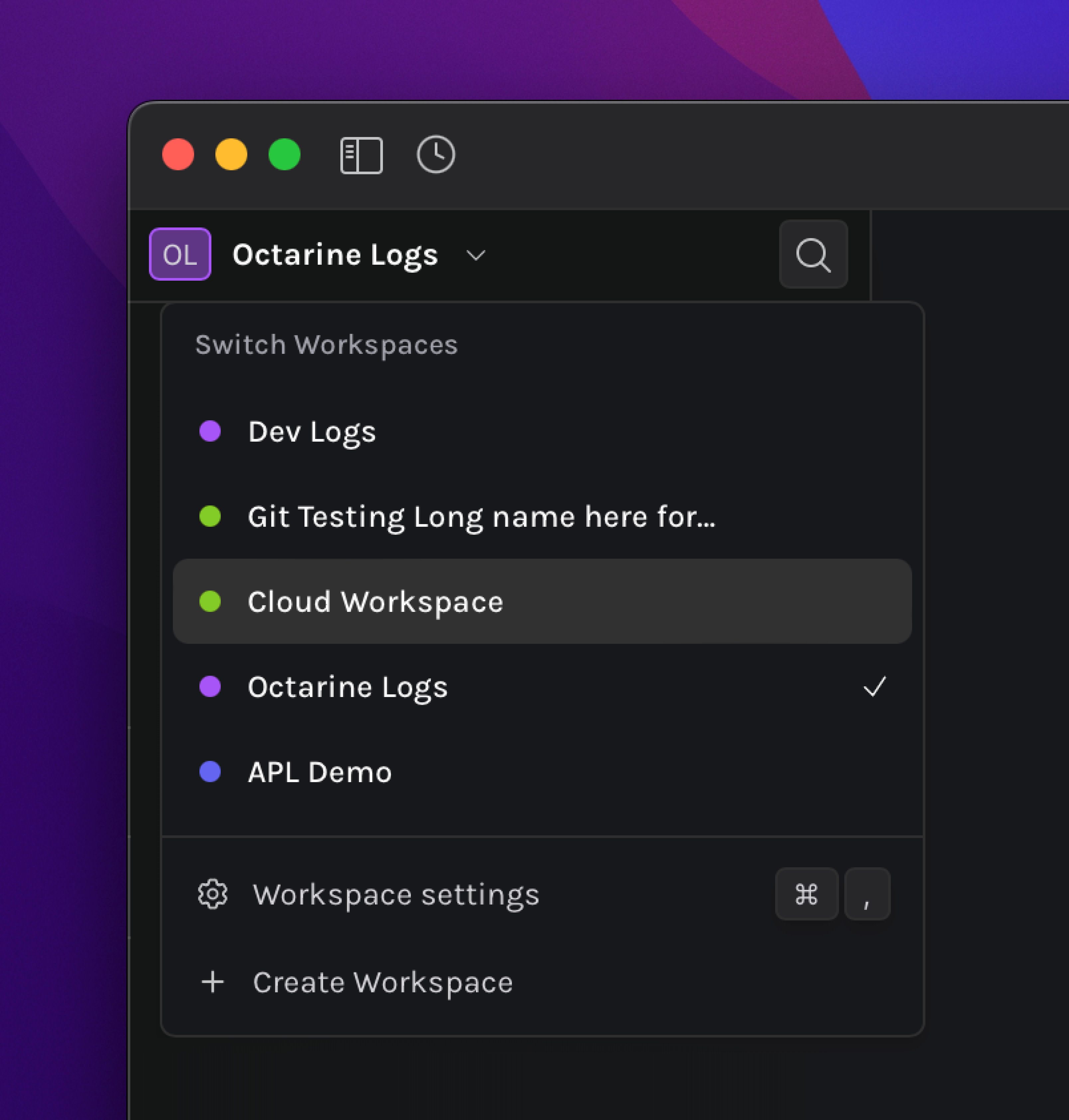
A workspace is a folder on your device that holds your notes, templates, attachments, and workspace-owned configuration. App preferences and some workspace settings are kept separately on the device. See Storing Data for the complete layout.
Create as many workspaces as you need — useful for keeping work and personal content separate.
When you first open Octarine, you'll be prompted to create a workspace before you can start using the app.
Creating a Workspace
Click the Workspace Switcher (your workspace name) in the top-left corner and select Create Workspace. You'll see three options:
Create New
Creates a brand new, empty folder at the location you choose. The workspace name you enter becomes the folder name — so if you name it "Work Notes" and pick your Documents folder, you'll end up with a Documents/Work Notes folder in Finder or Explorer. This is the simplest way to get started with a fresh set of notes.
Open Existing
Points Octarine at a folder you already have on your device. Nothing gets created or moved — Octarine simply starts treating that folder as a workspace. So if you select your existing Documents/Meeting Notes folder and name the workspace "Meetings", the folder stays as-is — "Meetings" is just the label you'll see inside Octarine. It doesn't rename the actual folder on disk.
Import from Git
Clones a Git repository and sets it up as a workspace. Octarine creates a new folder named after the repository — so if you clone git@github.com:you/my-notes.git into your Documents folder, you'll end up with a Documents/my-notes folder in Finder or Explorer. This is handy for pulling in notes you've already versioned or shared across devices.
For all three options, you can pick an identifying color and optionally clone settings (like API keys and editor preferences) from an existing workspace by selecting one from the Use settings from an existing workspace dropdown. Git-related settings aren't carried over when cloning.
Switching Workspaces
- Click the Workspace Switcher and select a workspace, or
- Use the Command Bar:
Cmd/Ctrl + K → Switch Workspace
Hover over a workspace's color dot in the switcher, then drag the handle to reorder the list.
Opening Workspaces in Separate Windows
From the Workspace Switcher, hover over another workspace and click the arrow on its right. You can also Cmd-click a workspace on macOS or Ctrl-click it on Windows and Linux.
The Command Bar action Open Workspace in New Window and the app's Window menu provide the same option. If that workspace already has a full window, Octarine focuses the existing window instead of opening a duplicate. See Multiple Windows for more details.
Copying Notes and Folders Between Workspaces
Right-click a note or folder in the file tree, select Copy to Different Workspace, then choose the destination. The original remains in place and the copy is added to the root of the other workspace.
If an item with the same name already exists at the destination, Octarine adds a number to the copy's name instead of overwriting it. Copying a folder includes everything inside that folder. Files referenced from elsewhere in the source workspace, such as workspace-level attachments, are not copied automatically.
Workspace Settings
Each workspace has its own settings, so you can configure them independently. Change the workspace name or color anytime — the name change doesn't affect the actual folder name on disk.
Deleting a Workspace
Go to Settings → Danger and type the workspace name to confirm. This removes Octarine's settings and configurations for that workspace but doesn't delete your notes or the folder from your device.
Quick Answers
What is an Octarine workspace?
A workspace is a folder on your device that contains your notes, templates, attachments, and workspace settings.
Can I open an existing notes folder as a workspace?
Yes. Choose Create Workspace, turn on Use an existing folder?, and select the folder you already use for notes.
Can I copy a note to another workspace?
Yes. Right-click the note or folder, select Copy to Different Workspace, and choose the destination. The original is not moved.
Does deleting a workspace delete my notes?
No. Deleting a workspace removes Octarine's settings for that workspace, but it does not delete the folder or notes from your device.