
Daily Desk
A focused calendar-based journaling and note-taking tool for daily and weekly entries.
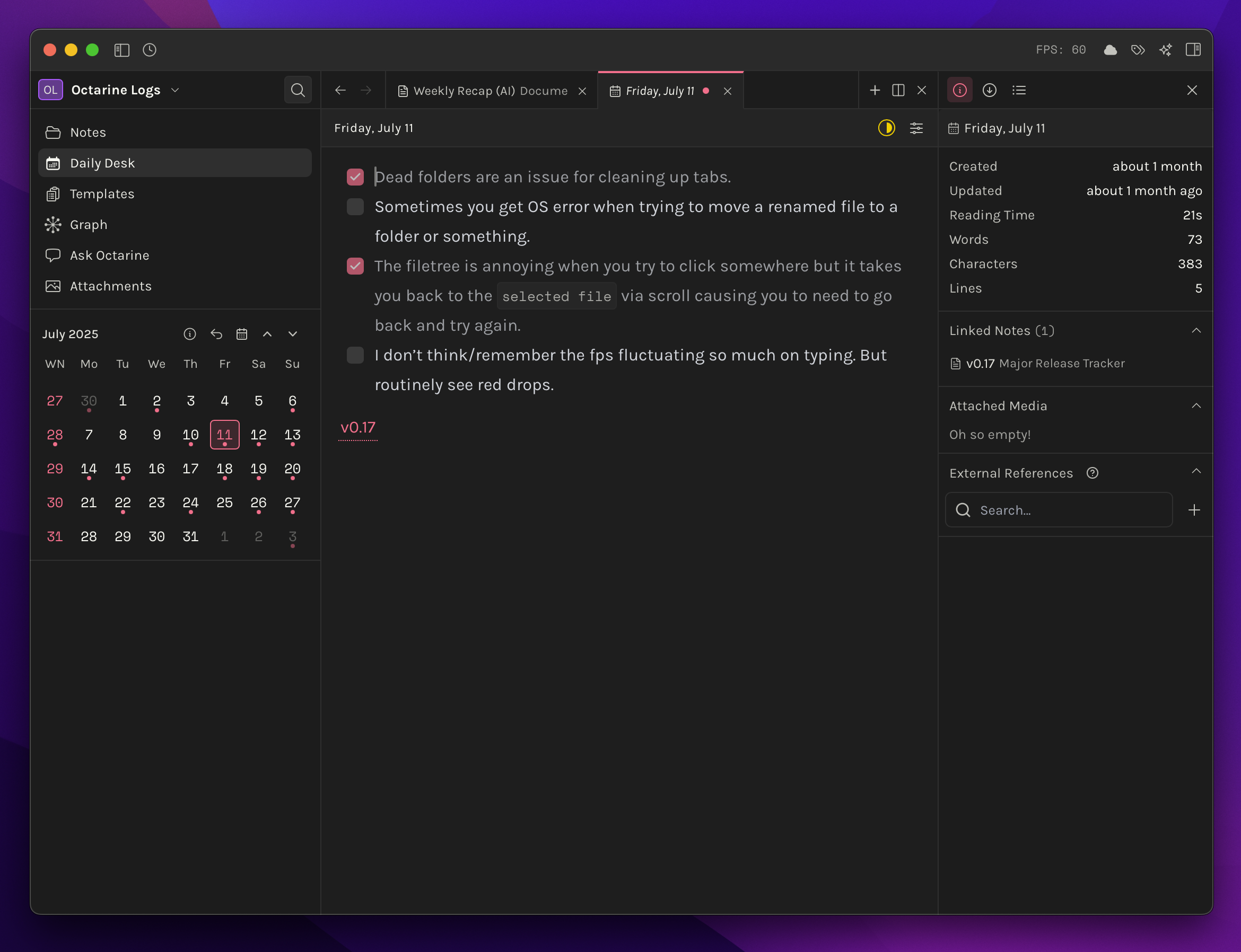
The Daily Desk is Octarine's dedicated journaling and daily note-taking system, providing a streamlined calendar-based interface for creating date-specific notes.
Unlike general note organization, the Daily Desk focuses solely on daily/weekly entries, offering a clean separation between your regular notes and time-based content.
The Basics
The Daily Desk uses a dedicated calendar interface in the left sidebar that handles only daily notes, keeping them distinct from your general note collection. Each day automatically generates a markdown file named with the date, creating a chronological record of your thoughts, tasks, and activities.
- Daily notes are stored in the
Dailyfolder of your workspace.- Each note follows a
YYYY-MM-DD.mdformat. Eg —2025-02-09.md
- Each note follows a
- Weekly notes are stored in the
Daily/Weeklyfolder of your workspace.- Each weekly note follows the
YYYY-W<number>.mdformat — Eg:2025-W3.md
- Each weekly note follows the
If a daily note has been created, it’ll be indicated with a small dot below the number. Hover over any such date to quickly preview the note’s content.
Use the chevron beside the month to collapse the calendar to the current week. The compact week keeps the note indicators, hover previews, and note actions available for each day and the week number.
Calendar Navigation
Navigate through your daily notes using multiple methods:
- Click any date in the calendar to open or create that day's note
- Keyboard shortcuts: Use the shortcuts listed below the calendar for rapid navigation
- Smart Dates: Press
Cmd/Ctrl + Kand use "Go to Date" with natural language like "yesterday", "next Friday", or "March 15th" - Arrow keys: Navigate through dates when the calendar is focused.
Right-click a date or week number in either the full or collapsed calendar to open that note in a new tab. For an existing note, the same menu can open it in your default app, reveal it in Finder or Explorer, or delete it. Opening a missing date or week in a new tab creates its note first.
Task Tally Counter
The Daily Desk includes a task tally counter that displays the total number of tasks in your daily notes, providing at-a-glance visibility into your daily workload and completion progress.
Move Tasks to Daily Desk
Select one or more tasks in any editable note and use the calendar button in the Bubble Menu to move them to Today, Tomorrow, This week, or a custom date. Octarine appends them to the matching daily or weekly note, creates that note when needed, and keeps a backlink to the source. See Scheduling Tasks for selection rules and Undo behavior.
Quick Answers
What is Daily Desk in Octarine?
Daily Desk is Octarine's calendar-based system for daily and weekly notes.
Where are daily notes stored?
Daily notes are stored in the Daily folder using the YYYY-MM-DD.md filename format.
Where are weekly notes stored?
Weekly notes are stored in Daily/Weekly using filenames such as 2025-W3.md.